There is a new feature introduced from Maximo 7.5 which allows users to schedule payments. You can use the Contract Line Items tab in the Contracts application to create a schedule of payments for the contract line items. I am going to present some scenarios where this feature can be useful and how the invoice is created for the same.
Points of Consideration and Scenarios for Payment Schedule functionality:
- Payment Schedule can be created for each contract line.
- Before you can create a payment schedule, you must select the Payment Schedule check box on the Properties tab.
- Out of the box payment schedule can be used to create Invoice on PO Approval and Receipt of Materials:
- Payment Percent should be selected such that line cost of each milestone do not exceed total line cost.
- For Example: A contract line has total line cost as 1000,
- Payment % for action POAPPR= 10, line cost=10% of 1000=100
- Payment % for action RECEIPT=90, line cost=90% of 1000=900
- Scenario 1: Contract Line with Qty=10, Unit Cost=100, Line Cost=1000,
- Payment Schedule 1: Action=POAPPR, Payment Percent=10, Line Cost=100
- Payment Schedule 2: Action=RECEIPT, Payment Percent=90,
Line Cost=900
- On PO approval, one invoice is created as: Invoice Qty=Ordered Qty=10, Unit Cost=10% of 100=10, Invoice Line Cost=100
- On partial receipt of 6 items, one invoice is created as: Invoice Qty=90% of Received Qty=90% of 6=5.4, Unit Cost=100, Invoice Line Cost=540
- On receipt of remaining 4 items, one invoice is created as: Invoice Qty=90% of Received Qty=90% of 4=3.6, Unit Cost=100, Invoice Line Cost=360
- Scenario 2: Contract Line with Qty=10, Unit Cost=50, Line Cost=500
- Payment Schedule 1: Action=RECEIPT, Payment Percent=100, Line Cost=500
- On Partial Receipt of 5 items, one invoice is created as: Invoice Qty=100% of Received Qty=100% of 5=5, Unit Cost=50, Invoice Line Cost=250
- On Partial receipt of 3 more items, one invoice is created as: Invoice Qty=100% of Received Qty=100% of 3=3, Unit Cost=50, Invoice Line Cost=150
- On receipt of remaining 2 items, one invoice is created as: Invoice Qty=100% of Received Qty=100% of 2=2, Unit Cost=50, Invoice Line Cost=100
- Scenario 3: Contract Line with Qty=10, Unit Cost=100, Line Cost=1000
- Payment Schedule 1: Action=RECEIPT, Payment Percent=20, Line Cost=200, Days Interval=7
- Payment Schedule 2: Action=RECEIPT, Payment Percent=80, Line Cost=800, Days Interval=7
- On partial receipt of 5 items, two invoices are created as:
- Invoice Date=7 days after receipt, Invoice qty=20% of Received Qty=20% of 5=1, Unit Cost=100, Invoice Line Cost=100
- Invoice Date=30 days after receipt, Invoice qty=80% of Received Qty=80% of 5=4, Unit Cost=100, Invoice Line Cost=400
- On partial receipt of 2 more items, two invoices are created as:
- Invoice Date=7 days after receipt, Invoice qty=20% of Received Qty=20% of 2=0.4, Unit Cost=100, Invoice Line Cost=40
- Invoice Date=30 days after receipt, Invoice qty=80% of Received Qty=80% of 2=1.6, Unit Cost=100, Invoice Line Cost=160
- On receipt of remaining 3 items, two invoices are created as:
- Invoice Date=7 days after receipt, Invoice qty=20% of Received Qty=20% of 3=0.6, Unit Cost=100, Invoice Line Cost=60
- Invoice Date=30 days after receipt, Invoice qty=80% of Received Qty=80% of 3=2.4, Unit Cost=100, Invoice Line Cost=240
Example for Scenario 1
- Created one Purchase Contract with one contract line with payment schedule as below:
- OrderQty=10, Unit Cost=100, Line Cost=1000
- Payment%=10, Action=POAPPR, Line Cost=100
- Payment%=90,
Action=RECEIPT, Line Cost=900
- PO created for the above contract and approved as below:

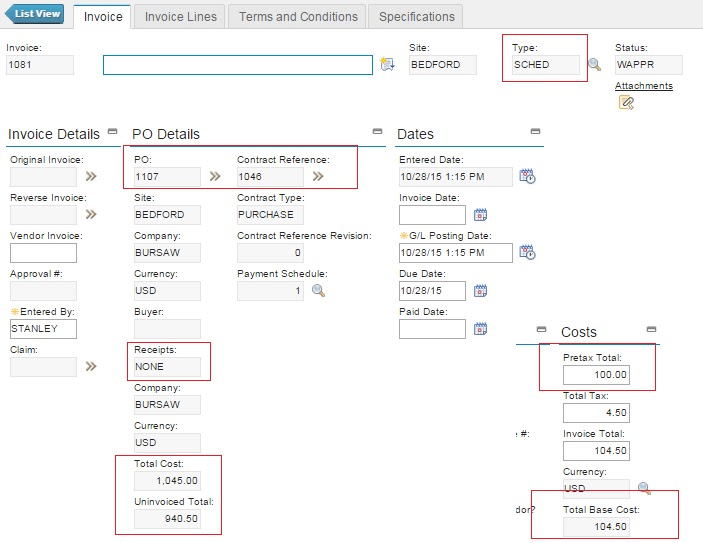
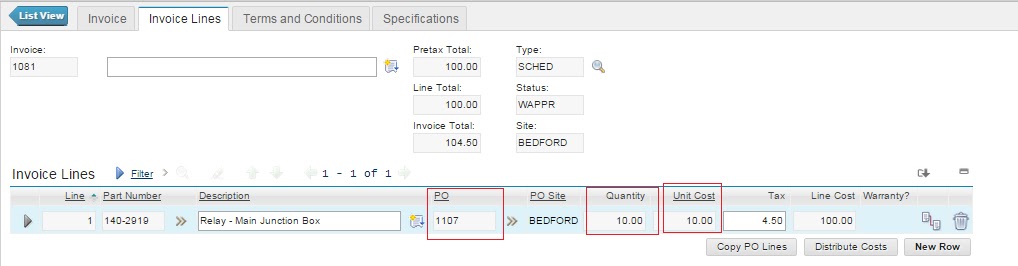
- On PO approval, an invoice is created as below with Pretax Total = 10% of 1000 = 100 USD:
 Check the values in Total Cost and Uninvoiced Total fields. Also, check the Invoice Line details as below: Qty=10,
Unit Cost=10% of OrderQty=10, Invoice Line Cost=100
Check the values in Total Cost and Uninvoiced Total fields. Also, check the Invoice Line details as below: Qty=10,
Unit Cost=10% of OrderQty=10, Invoice Line Cost=100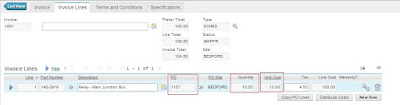
- Receiving
6 items out of 10 ordered for Partial Receipt as below:

- One invoice is created for the above partial receipt as below:
 Uninvoiced Total = 376.20
 Check the Invoice Line details as: Unit
Cost=100, Invoice Qty = 90% of Received Qty = (90x6)/100 = 5.4, Line Cost = 540
Check the Invoice Line details as: Unit
Cost=100, Invoice Qty = 90% of Received Qty = (90x6)/100 = 5.4, Line Cost = 540 - Receiving 2 more items as below:

- Invoice created for above receipt as below:

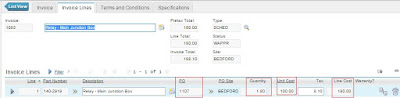 Check the Invoice Line details as: Unit Cost=100, Invoice Qty = 90% of Received Qty = (90x2)/100 = 1.8, Line Cost = 180.
 - Receiving remaining 2 items as below:

- Invoice Created for above receipt as below:
 Note that Receipt is now Complete and Uninvoiced Total=0.
  Also, check Invoice Line details as: Unit Cost=100, Invoice Qty = 90% of Received Qty = (90x2)/100 = 1.8, Line Cost = 180.




I hope this blog will help people in understanding how this feature works. Please feel free to share your comments.


