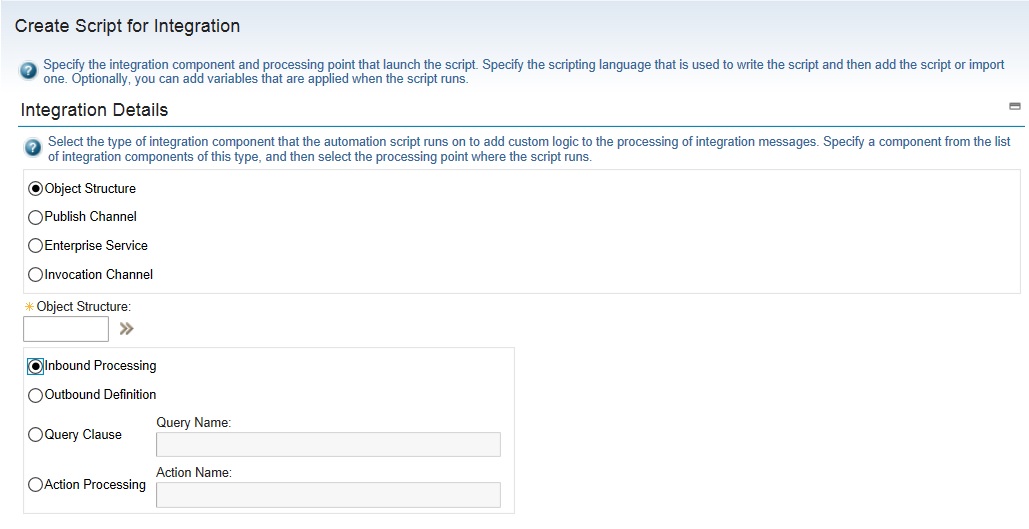
We have used java classes to extend the main java processing classes to customize the processing of integration messages for inbound and outbound transactions. Maximo 7.6 has given us the capability to leverage automation scripts to apply our custom logic to integration components. We can create automation script and associate it to an object structure, enterprise service, publish channel, etc. To create an automation script for integration, in the Automation Scripts application you need to select the action Create > Automation Script for Integration.

Next, you will have to select the integration component on which the automation script will run to apply your custom logic. Before that we need to understand what are the different customization points for inbound and outbound transactions that are available with automation scripts.
- The automation script for outbound object structure allows an outbound definition to be created which will have the custom processing code to be used during serialization of business object data into an XML message. The automation script for inbound object structure allows an inbound processing of the incoming XML message before it is mapped to the business data. The automation script name will be created by the system as OSIN.<object-structure name> for inbound processing or as OSOUT.<object-structure name> for outbound processing.


- Object structure processing creates the integration message which is then forwarded to the publish channel for outbound transaction. Custom logic can be written in an Automation scripts to process the publish channel further, through either External Exit, user exit before external exit, user exit after external exit or event filter processing. If the publish channel selected for the automation script is MXINVENTORYINTERFACE, then the script name will be as below:
- PUBLISH.MXINVENTORYINTERFACE.EXTEXIT.OUT (External Exit)
- PUBLISH.MXINVENTORYINTERFACE.USEREXIT.OUT.BEFORE (User Exit before external exit)
- PUBLISH.MXINVENTORYINTERFACE.USEREXIT.OUT.AFTER (User Exit after external exit)


- After successful creation of the automation script for the publish channel, in the Publish Channels application, you can see that predefined class references get auto-populated in Processing class, User Exit Class or Event Filter Class fields. The processing class field will have the value as "com.ibm.tivoli.maximo.script.ScriptExternalExit" if we have used external exit with the automation script or the user exit class field will have the value as "com.ibm.tivoli.maximo.script.ScriptUserExit" if we have used user exit class.
- For outbound integration messages, Maximo will start an integration transaction. The object structure provides an internal record data (irData) element to a publish channel, which is then processed through a custom logic and an external record data (erData) element is constructed before the message is forwarded to its destination. We have created an automation script (PUBLISH.ES_MXITEMINTERFACE.EXTEXIT.OUT) with a publish channel that is created on MXITEM object structure. In this object structure, we have included a non-persistent attribute "ITEMNAME_NP" which should be combination of item number and description which needs to be sent in outbound transaction. The source code is as below:

- Enterprise service provides asynchronous and synchronous processing of inbound integration messages. During asynchronous processing, external service opens a connection and sends a enterprise service request and does not require a response. However, during synchronous processing, external service opens the connection to send the enterprise service request and will maintain the connection till a response is received. Automation scripts provide the following customization points during the processing of inbound or outbound integration messages to be used with enterprise services:
- Inbound Request - User Exit before external exit - SYNC.<enterprise-service name>.USEREXIT.IN.BEFORE
- Inbound Request - User exit after external exit - SYNC.<enterprise-service name>.USEREXIT.IN.AFTER
- Inbound Request - External Exit - SYNC.<enterprise-service name>.EXTEXIT.IN
- Outbound Response - User Exit before external exit - SYNC.<enterprise-service name>.USEREXIT.OUT.BEFORE
- Outbound Response - User exit after external exit - SYNC.<enterprise-service name>.USEREXIT.OUT.AFTER
- Outbound Response - External Exit - SYNC.<enterprise-service name>.EXTEXIT.OUT


- After successful creation of the automation script for enterprise service, you can see in the Enterprise Service application, for this enterprise service record predefined class references get populated as "com.ibm.tivoli.maximo.script.ScriptExternalExit" in the processing class field or as "com.ibm.tivoli.maximo.script.ScriptUserExit" in the user exit class field.
- For inbound integration messages, external system starts the integration transaction and the incoming integration message provides an erData element to an enterprise service. Through a custom code, this element is processed to construct an irData element before the message is forwarded to the associated object structure. Let us assume that we are using out of the box enterprise service, 'MXPOInterface' to processes inbound messages to MXPO object structure. If for any incoming PO record, buyer (PURCHASEAGENT) is null, we need to use the value of the person who has initiated the PO record in this field before saving it to PO object. Automation script is created as per the image below:


After the above automation script is created, you can see in the related enterprise service record, processing class field is auto-populated with the predefined class reference. See the below image:

In case you want to delete the above script, please remember to remove the class reference explicitly from this field in the Enterprise Services Application.
References:

