Showing posts with label Maximo Integration Framework. Show all posts

Tuesday, 7 August 2018

Leveraging Automation Scripts for Inbound and Outbound processing of messages

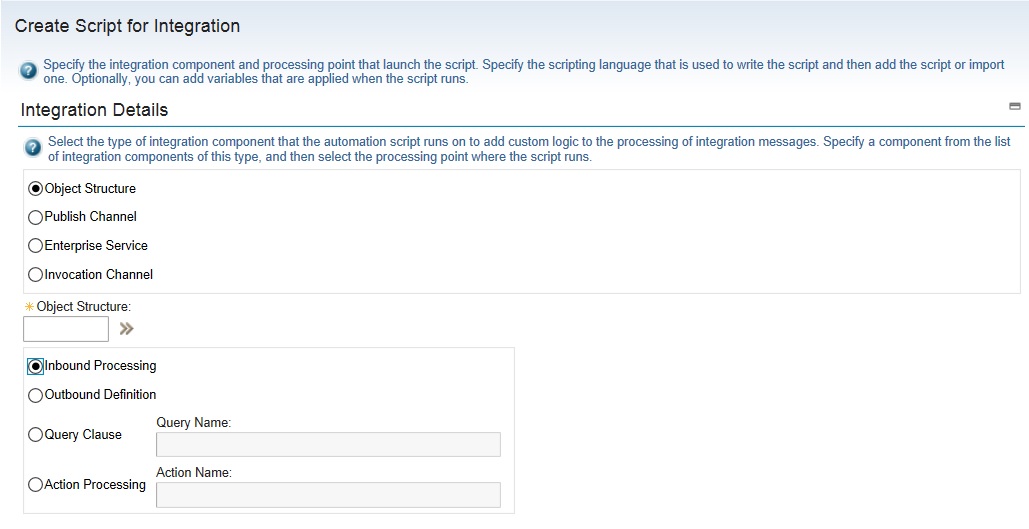
We have used java classes to extend the main java processing classes to customize the processing of integration messages for inbound and outbound transactions. Maximo 7.6 has given us the capability to leverage automation scripts to apply our custom logic to integration components. We can create automation script and associate it to an object structure, enterprise service, publish channel, etc. To create an automation script for integration, in the Automation Scripts application you need to select the action Create > Automation Script for Integration. 
Next, you will have to select the integration component on which the automation script will run to apply your custom logic. Before that we need to understand what are the different customization points for inbound and outbound transactions that are available with automation scripts.
  1. The automation script for outbound object structure allows an outbound definition to be created which will have the custom processing code to be used during serialization of business object data into an XML message. The automation script for inbound object structure allows an inbound processing of the incoming XML message before it is mapped to the business data. The automation script name will be created by the system as OSIN.<object-structure name> for inbound processing or as OSOUT.<object-structure name> for outbound processing. 
  2. Object structure processing creates the integration message which is then forwarded to the publish channel for outbound transaction. Custom logic can be written in an Automation scripts to process the publish channel further, through either External Exit, user exit before external exit, user exit after external exit or event filter processing. If the publish channel selected for the automation script is MXINVENTORYINTERFACE, then the script name will be as below:
    • PUBLISH.MXINVENTORYINTERFACE.EXTEXIT.OUT (External Exit)
    • PUBLISH.MXINVENTORYINTERFACE.USEREXIT.OUT.BEFORE (User Exit before external exit)
    • PUBLISH.MXINVENTORYINTERFACE.USEREXIT.OUT.AFTER (User Exit after external exit)

    • After successful creation of the automation script for the publish channel, in the Publish Channels application, you can see that predefined class references get auto-populated in Processing class, User Exit Class or Event Filter Class fields. The processing class field will have the value as "com.ibm.tivoli.maximo.script.ScriptExternalExit" if we have used external exit with the automation script or the user exit class field will have the value as "com.ibm.tivoli.maximo.script.ScriptUserExit" if we have used user exit class.

    • For outbound integration messages, Maximo will start an integration transaction. The object structure provides an internal record data (irData) element to a publish channel, which is then processed through a custom logic and an external record data (erData) element is constructed before the message is forwarded to its destination. We have created an automation script (PUBLISH.ES_MXITEMINTERFACE.EXTEXIT.OUT) with a publish channel that is created on MXITEM object structure. In this object structure, we have included a non-persistent attribute "ITEMNAME_NP" which should be combination of item number and description which needs to be sent in outbound transaction. The source code is as below:
  3. Enterprise service provides asynchronous and synchronous processing of inbound integration messages. During asynchronous processing, external service opens a connection and sends a  enterprise service request and does not require a response. However, during synchronous processing, external service opens the connection to send the enterprise service request and will maintain the connection till a response is received. Automation scripts provide the following customization points during the processing of inbound or outbound integration messages to be used with enterprise services:
    • Inbound Request - User Exit before external exit - SYNC.<enterprise-service name>.USEREXIT.IN.BEFORE
    • Inbound Request - User exit after external exit - SYNC.<enterprise-service name>.USEREXIT.IN.AFTER
    • Inbound Request - External Exit - SYNC.<enterprise-service name>.EXTEXIT.IN
    • Outbound Response - User Exit before external exit - SYNC.<enterprise-service name>.USEREXIT.OUT.BEFORE
    • Outbound Response - User exit after external exit - SYNC.<enterprise-service name>.USEREXIT.OUT.AFTER
    • Outbound Response - External Exit - SYNC.<enterprise-service name>.EXTEXIT.OUT

    • After successful creation of the automation script for enterprise service, you can see in the Enterprise Service application, for this enterprise service record predefined class references get populated as "com.ibm.tivoli.maximo.script.ScriptExternalExit" in the processing class field or as "com.ibm.tivoli.maximo.script.ScriptUserExit" in the user exit class field.

    • For inbound integration messages, external system starts the integration transaction and the incoming integration message provides an erData element to an enterprise service. Through a custom code, this element is processed to construct an irData element before the message is forwarded to the associated object structure. Let us assume that we are using out of the box enterprise service, 'MXPOInterface' to processes inbound messages to MXPO object structure. If for any incoming PO record, buyer (PURCHASEAGENT) is null, we need to use the value of the person who has initiated the PO record in this field before saving it to PO object. Automation script is created as per the image below:
After the above automation script is created, you can see in the related enterprise service record, processing class field is auto-populated with the predefined class reference. See the below image:

In case you want to delete the above script, please remember to remove the class reference explicitly from this field in the Enterprise Services Application.

References:

  1. Creating automation scripts for integration
  2. Automation Scripts with Object Structures
  3. Automation Scripts with Publish Channel
  4. Automation Scripts with Enterprise Service
  5. Examples from IBM Knowledge Center

Wednesday, 22 November 2017

Using Interface Tables to Insert Records - Continuous Vs Sequential Queue

In our world, we come across different requirements and problem statements for which we need to provide solution. It is not necessary that each solution we design or implement would be agreed upon universally. We had this requirement to generate records automatically for one of the application in MAXIMO. At the same time, record needs to be created in the parent object as well as records need to be entered to its child object. So, definitely we need to think about Object Structure, Enterprise services, External Systems and off course Interface Tables to insert records to our MAXIMO main objects.

For this data import to MAXIMO through interface tables, we need to consider or keep in mind the following:
  1. Object Structure - The object structure with the required objects and parent-child relationships should be created. Exclude/Include fields should be used appropriately keeping in mind what columns need to be included in the interface table.
  2. Enterprise Service - Enterprise Service should be created with the above created object structure and the intended name of the Interface Table mentioned. You can check to enable message tracking.
  3. External System - You can create a new external system or use an existing one but ensure that end point selected is "MXIFACETABLE", sequential queues and continuous queues properly configured. 
    • Outbound Sequential Queue = jms/maximo/int/queues/sqout
    • Inbound Sequential Queue = jms/maximo/int/queues/sqin
    • Inbound Continuous Queue = jms/maximo/int/queues/cqin
    • In the Enterprise Services tab for this external system, add the above created enterprise service, check the "Enabled?" check box, check or uncheck the "Use Continuous Queue?" checkbox.
    • From action menu, now select the Create Interface Tables action. In the dialog, select the interface table name mentioned with the enterprise service and click on Create button. It will take a few seconds to process your request.
  4. Cron Task - In Cron Task Setup application, open "JMSQSEQCONSUMER" cron task and ensure that two cron task instances, one for sequential In and one for sequential Out are active. Next, open the "IFACETABLECONSUMER" cron task. A cron task instance should be present which is active with its scheduled defined. The properties for this cron task instance should have QUEUETABLE=MXIN_INTER_TRANS and END POINT=MXIFACETABLE.
  5. Writing data to Interface Table - At this stage, everything on the Maximo side has been set up, and we need to do to create some kind of routine to send data to the interface tables. The cron task IFACETABLECONSUMER, then polls the inbound interface queue table for new records to process as per the schedule set. 
    • Automation Script: For every record that needs to be added to the MAXIMO object, we need to add a new row to MXIN_INTER_TRANS object as well as to the Interface Table. For our convenience, we have used an automation script to include insert scripts for MXIN_INTER_TRANS and the interface table created above.
    • Cron Task: To trigger or initiate the above automation script, we have set up a new cron task with class=com.ibm.tivoli.maximo.script.ScriptCrontask. A new cron task instance also needs to be created with "Active?" checkbox checked and appropriate schedule defined. The properties for this cron task instance include SCRIPTARG=0 and SCRIPTNAME=<above automation script name>
With above configurations, we were able to create new records for the application, as stated above. Now, moving over to the confusion over using continuous queue or sequential queue for this approach. We had initially used continuous queue for this inbound processing of records to MAXIMO objects. If an incoming message gets stuck in sequential queue, other subsequent incoming messages are not processed until the error message is either reprocessed or deleted. To avoid this, we had gone ahead with continuous queue. It was working fine in our development instance. When this was moved to TEST and Production instance, we started facing an error of Database Error 1 in some of the incoming messages. 

I need to mention here that this database error 1 had come for primary key attribute of the main object in the object structure.We checked the logic in automation script to see if we were trying to insert any duplicate value to this attribute. This may have been due to continuous queue trying to insert two records with same ID generated. If we would reprocess the message with status=ERROR, it eventually gets processed. To handle this, we tried two approaches.
  1. We tried with increasing the Max Try Count, this issue got reduced but it was not fully resolved, i.e., the number of failed messages decreased but issue was still prevalent for a few messages. 
  2. We changed the inbound processing queue to sequential. We have never come across the database error 1 for our primary key attribute again and it has been seven to eight months since :) 
With the above experience, we can conclude that if the order of processing is important, like in our case above, we should use Sequential Queue rather than Continuous queue. Continuous inbound processing works better for transaction records like invoices, etc. Please do share your experiences and thoughts.


Thursday, 3 September 2015

Confusion over data load/migration using Migration Manager and Maximo Integration Framework

Usually in layman terms, whenever we are talking about migration we refer to data migration. It may be related to data load/migration from a legacy system to Maximo, or it may be related to data load to Maximo tables. But Migration Manager application(s) in Maximo enables a structured set of steps to promote configurations from one product environment to another. Migration Manager helps to export the configuration changes made on the development environment in a package and helps to import the package into a test or production environment.

I had come across an interesting query that whether we are using migration manager or the integration framework we create an object structure, which allows to create the data model which will be used for import/export. And, we import/export data related to an object, and the configuration changes also get saved in Maximo objects. So, why don’t we use Integration Framework instead of Migration Manager to import/export the configuration changes using XML or flat files? To answer this we need to understand the purpose of these

The purpose of Maximo Integration Framework is used to manage the transactional integration to external applications and is used for export and import to and from external applications or existing applications. The MIF supports primarily the master and transactional data. The purpose of Migration Manager is used for package-based configuration export and import between similar production environments. Migration Manager supports import/export of metadata (configuration data).

To understand the usage of each framework, we need to understand which one we should select to execute the required tasks. For example, a developer has implemented a workflow for incident management using TPAE (Tivoli Process Automation Engine) Workflow Designer and related applications like, Roles, Actions, Communication Templates, etc. This workflow needs to be promoted to Test and Production environments. In this case we are going to use migration manager. We bundle all the related metadata (configuration changes to actions, roles, communication templates, workflow process, etc.) to a package definition using object structures and migration groups, create a package, and distribute the package in the development environment. This package is then imported and deployed in the test or production environment. This way the workflow for incident management is made available in the test or production environment.

Let us consider one more example. We have a set of requirements for which we have created two custom objects. We have created new domains and relationships to new or existing objects. Based on these configuration changes we have made some changes to the Preventive Maintenance application. We need to migrate the configuration changes to a UAT environment before deploying into the Production environment. Here also, we need to use the migration manager.

Let us consider another scenario where we need to integrate Tivoli Asset Management for IT with asset discovery tool TAD4D or we need to integrate the Tivoli Service Request Manager to an external ticket management application and also the historical tickets need to be loaded into Tivoli Product. Integration Framework (MEA) is the choice in this case. Existing data, such as tickets, can be loaded into Tivoli Service Request Manager using a number of methods, including flat files, interface tables, or XML. Further, we may need to add 500 asset records. We will use MEA for loading the data for 500 records into the Asset object.

Now there is a need to migrate foundation data, which is also known as the implementation data, from development to production to avoid having to re-enter huge amount of data, such as locations and classifications, units of measure, currency codes etc., in the production environment. Some people like to call it as Reference Data also. Typically, this type of data consists of discrete sets of data that do not have multiple or deep relationships with other data. The Migration Manager can be used to migrate such foundation data. However, with its queue based processing, message processing and resubmission capability, using MIF to load foundation/reference/implementation data is more efficient that using migration manager framework.


With this we can come to a conclusion that data load/migration from one Maximo environment to another or from external system to Maximo, we need to keep in mind what type of data we are migrating or promoting. When we refer to metadata, i.e. data about data, like configuration changes, we would be using migration manager. And when we refer to master or transactional data and reference/implementation data, we should selectively use the Integration Framework.