Friday, 7 October 2016

Maximo Applications - Exploring Conditional UI to Using Data/Attribute Restrictions

I have come across such questions many a time as why do we use data/attribute restrictions instead of using conditional UI with our application designer restrictions. There are pros and cons of using both in our practice, and there is no wrong or right away of doing things, also different people will have different thoughts based on their experience. And, I am  also writing this blog as per my experience or understanding.

As you all are aware that there are separate ways that can be used to set up condition UI in Maximo. Condition UI gives flexibility to change properties, give access or restrict data based on meeting or not meeting some condition. A developer also has the option to add and associate security options to tabs, sections, textboxes, tables etc., with a condition on top of the application security.

Let us start our explanation with a simple example. Let us suppose that my application has a text box, Status, which should be visible only to Management Group, Contractor Group, Labor group and HR group. I would go to application designer, create and associate a signature option to this text box. I would next go to Security Groups application, search for required groups, would navigate to Application tab and for my application I would give grant access to that signature option. I hope everybody would agree with me till this point. 

Next, let us add some restriction(s) to the Status field, gradually. For HR group, the field should always be read-only. What could be a better approach to achieve this? I can go to application designer to access the application, open the text box properties dialog for that field where the signature option, created above, is already associated and click on Configure Conditional Properties. Select the HR group in Security Groups section, associate a condition which is always true (like 1=1) and for true condition enter a property=inputmode and value=readonly. As per my understanding, better way would have been to use a attribute restriction in the security groups application. In the Security Groups application, search for HR group, navigate to Data Restrictions tab, open Attribute Restrictions sub-tab. Select the object, attribute, application and keep the Type=READONLY.

Since this data restriction is enforced at the data level, this restriction will work for all instances of the object/attribute regardless of being instantiated through presentation (application UI), or via background process (such as action, or via integration). We need to remember that data restrictions always supersede application configurations in the Application Designer application. The flow of restrictions on an attribute starts with database configuration, then data restriction which is enforced at a security group level, and then Application Designer configurations which is only at the application's UI presentation level.

We also need to remember that configurations that are created through data restrictions are applicable wherever that object-attribute pair is used, while application designer restrictions are not. If you want to apply a restriction to a field in all the tabs of an application, it is advisable to use data restrictions as all the fields in all the tabs will inherit the restriction. However, if you configure restriction in application designer, it will have to be configured in each field of each tab. Similarly, for a table column, for header and detail section you will need to configure the same restriction twice in application designer.

Now, let us add some more interesting things to our Status field. Let us assume there is also a lookup for Status field with values, Inspected, Routed, Checked, Routed to Manager, In Progress, Approved, Completed. For Contractor and Labor group, the Status field should be required based on the value of some other field. Let us suppose that if the description field is not null and contains 'Test', the Status field should become required for Contractor and Labor group(s). But the Status field lookup should display only 'Inspected' and 'Routed' values to a contractor and only 'Checked' and 'Routed to Manager' values to a labor group member. Also, a labor group member should see all other values in the lookup if  description field does not contain 'Test' but for a contractor group member no only two values should appear in the lookup at any time. We need not go explore conditional domains yet, let us save it for another day :)

Step 1: Create a condition TESTCOND in Conditional Expression Manager to check for value in description field of the same object.
Go to Security Groups application, search for Contractor group, navigate to Data Restrictions tab, open Attribute Restrictions sub-tab. Select the object, attribute, application, select the Type=REQUIRED and select Condition=TESTCOND.  Repeat the same step for Labor group.

Step 2: Create two new lookups (CONTLOOKUP and LABLOOKUP) in Lookups.xml to display Inspected and Routed values and Checked and Routed to Manager values, respectively.
Go to Application Designer application, search for the application. Open text properties dialog for Status field where the signature option, created above, is already associated and click on Configure Conditional Properties. Select the Contractor group in Security Groups section, associate a condition which is always true (like 1=1) and for true condition enter a property=lookup and value=CONTLOOKUP. Similarly, add Labor group in Security Groups section, associate TESTCOND in Conditions section, for true condition enter a property=lookup and value=LABLOOKUP and for false condition enter a property=lookup and value=VALUELIST (if there is ALN/SYNONYM domain associated with STATUS attribute in database configurations).

I am not sure whether everyone would agree with me for the above approach I have considered. Let us consider another aspect of granting access to signature options. We had configured conditional UI for a section to become read-only on meeting some condition for say, Labor Group. But this section needs to be visible to Management Group and HR Group but this section need not be available to Contractor group at all. As you all have figured out already, we have associated a signature option to this section and configured conditional properties for Labor group with a condition and have set property=inputmode and value=readonly for when condition is true. And, in Security Groups application, for this application and this signature option, we granted access to Management Group and HR Group but did not grant access to Contractor Group.

Here I usually need to answer very often why do we need to go to each security group to grant access? We can configure conditional UI for rest of the groups as well. For Management and HR Group(s) who already have this application access, we can also configure conditional properties for the section mentioned above by associating a always true condition with property=display and value=true. For contractor group, we can configure conditional properties for this section by associating a always true condition with property=display and value=false.

We do get into some more confusions with independence or dependence of security groups. There is very useful (or rather sometimes confusing) check box provided in Security Groups application as 'Independent of Other Groups'. We will keep multi-site implementations for some other time, we will focus on single-site implementations for today. The purpose of this particular checkbox is to decide whether access rights of this group can be merged with the access rights of other groups. This is very useful and applicable to multi-site implementations and does not hold much significance for single site implementations.

Let us consider a single site (SITE-A) implementation where a user belongs to two security groups, say Management and HR. Management group has access to Purchase Orders application and HR group has access to People application. Let us also consider that Management Group is set up with No Site information and HR Group is set up with SITE-A in a single site implementation. If we make both the sites independent then this user will have access only to People application. If we do not check 'Independent of Other Groups' checkbox for these two groups, the user will have access to both the applications. As a best practice, we should not check this checkbox for single site implementations.

If we have multiple independent security groups then the resulting security profile of the user gets difficult to determine if the user belongs to more than one security group. Let us extend our example further. Say user USER1 belongs to both HR and Contractor group(s). HR and Contractor groups are both independent and are implemented with SITE-A (or authorized for all sites). Both groups are implemented with access to Purchase Contracts application but have been configured with specific conditional access to change status. Say, contractor should be able to change the status of a purchase contract record on meeting condition X and HR should be able to change the status of a purchase contract record on meeting condition Y. If either of the condition X or Y is true, USER1 user will be able to change status of the purchase contract. If there is some user USER2 who belongs to Contractor group alone and user USER3 who belongs to HR group alone, then USER 2 will be able to change the status of a purchase contract record when condition X is true and USER3 will be able to change the status when condition Y is met.

If we clear the checkbox and make the contractor group dependent, what will happen to the privileges for USER1? In this case, USER1 will be able to change the status of Purchase Contract record when condition X is true.

Please feel free to post your views and comments on this blog. I would love to hear from you.


Thursday, 2 June 2016

Configuring Work Logs for an application

We all are aware that our world is a client driven world. We need to get workarounds for most of the requirements we gather. We came across one such requirement to configure work logs for Invoice application. So, we added relationships from INVOICE object to WORKLOG object as recordkey=:invoicenum and class='INVOICE'. We included the work log tab in our application xml. When we decompiled the WORKLOG.class in psdi.app.ticket folder in MAXIMO 7.6, we could see it includes PO and PR with earlier TICKET and WORKORDER class records only. So. while you want to add a record to WORKLOG from Invoice application, system is unable to decipher what is the parent class, what to set in recordkey field, etc.

We explored two approaches to get a work around to the above stated problem. One is to insert records into APPFIELDDEFAULTS table using below sql insert scripts


Next approach which is also very effective is using automation script. We created an object launch point on WORKLOG object with event as Initialization and wrote our source code as attached in the images below:


So far so good. We had another requirement to add similar tab to Item Master application. We had configured every thing accordingly but on click of New Row button in the Work Logs tab, we encountered the below error:


We found out that ITEM object is at ITEMSET level and does not have ORGID attribute, so we were thrown this particular error from the system. So, we rolled back all configuration changes we had done to add the Work Logs tab in Item Master application as any other application with Logs tab. We could not find a solution. As a work around, we created a custom object which had all the attributes as WORKLOG object, created a new relationship from ITEM object to this custom object and managed to add records to this new custom object. If someone had encountered such a scenario and were able to find a better solution, please feel free to share your thoughts.

References:

Wednesday, 28 October 2015

Payment Schedule Creation in Contracts and Invoices for the Purchase Order

There is a new feature introduced from Maximo 7.5 which allows users to schedule payments. You can use the Contract Line Items tab in the Contracts application to create a schedule of payments for the contract line items. I am going to present some scenarios where this feature can be useful and how the invoice is created for the same.

Points of Consideration and Scenarios for Payment Schedule functionality:

  1. Payment Schedule can be created for each contract line.
  2. Before you can create a payment schedule, you must select the Payment Schedule check box on the Properties tab.
  3. Out of the box payment schedule can be used to create Invoice on PO Approval and Receipt of Materials:
    • Payment Percent should be selected such that line cost of each milestone do not exceed total line cost.
    • For Example: A contract line has total line cost as 1000,
      • Payment % for action POAPPR= 10, line cost=10% of 1000=100
      • Payment % for action RECEIPT=90, line cost=90% of 1000=900
  4. Scenario 1: Contract Line with Qty=10, Unit Cost=100, Line Cost=1000,
      • Payment Schedule 1: Action=POAPPR, Payment Percent=10, Line Cost=100
      • Payment Schedule 2: Action=RECEIPT, Payment Percent=90, Line Cost=900
    • On PO approval, one invoice is created as: Invoice Qty=Ordered Qty=10, Unit Cost=10% of 100=10, Invoice Line Cost=100
    • On partial receipt of 6 items, one invoice is created as: Invoice Qty=90% of Received Qty=90% of 6=5.4, Unit Cost=100, Invoice Line Cost=540
    • On receipt of remaining 4 items, one invoice is created as: Invoice Qty=90% of Received Qty=90% of 4=3.6, Unit Cost=100, Invoice Line Cost=360
  5. Scenario 2: Contract Line with Qty=10, Unit Cost=50, Line Cost=500
      • Payment Schedule 1: Action=RECEIPT, Payment Percent=100, Line Cost=500
    • On Partial Receipt of 5 items, one invoice is created as: Invoice Qty=100% of Received Qty=100% of 5=5, Unit Cost=50, Invoice Line Cost=250
    • On Partial receipt of 3 more items, one invoice is created as: Invoice Qty=100% of Received Qty=100% of 3=3, Unit Cost=50, Invoice Line Cost=150
    • On receipt of remaining 2 items, one invoice is created as: Invoice Qty=100% of Received Qty=100% of 2=2, Unit Cost=50, Invoice Line Cost=100
  6. Scenario 3: Contract Line with Qty=10, Unit Cost=100, Line Cost=1000
      • Payment Schedule 1: Action=RECEIPT, Payment Percent=20, Line Cost=200, Days Interval=7
      • Payment Schedule 2: Action=RECEIPT, Payment Percent=80, Line Cost=800, Days Interval=7
    • On partial receipt of 5 items, two invoices are created as:
      • Invoice Date=7 days after receipt, Invoice qty=20% of Received Qty=20% of 5=1, Unit Cost=100, Invoice Line Cost=100
      • Invoice Date=30 days after receipt, Invoice qty=80% of Received Qty=80% of 5=4, Unit Cost=100, Invoice Line Cost=400
    • On partial receipt of 2 more items, two invoices are created as:
      • Invoice Date=7 days after receipt, Invoice qty=20% of Received Qty=20% of 2=0.4, Unit Cost=100, Invoice Line Cost=40
      • Invoice Date=30 days after receipt, Invoice qty=80% of Received Qty=80% of 2=1.6, Unit Cost=100, Invoice Line Cost=160
    • On receipt of remaining 3 items, two invoices are created as:
      • Invoice Date=7 days after receipt, Invoice qty=20% of Received Qty=20% of 3=0.6, Unit Cost=100, Invoice Line Cost=60
      • Invoice Date=30 days after receipt, Invoice qty=80% of Received Qty=80% of 3=2.4, Unit Cost=100, Invoice Line Cost=240

Example for Scenario 1

  1. Created one Purchase Contract with one contract line with payment schedule as below:
    • OrderQty=10, Unit Cost=100, Line Cost=1000
    • Payment%=10, Action=POAPPR, Line Cost=100
    • Payment%=90, Action=RECEIPT, Line Cost=900 
  2. PO created for the above contract and approved as below: 


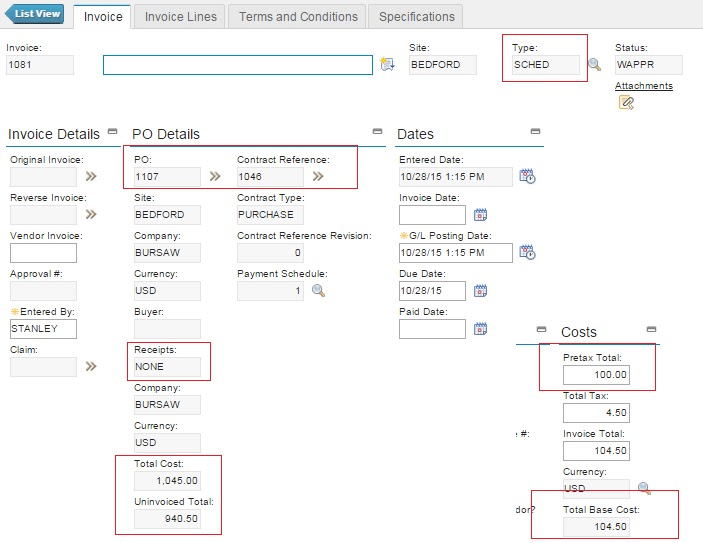
  3. On PO approval, an invoice is created as below with Pretax Total = 10% of 1000 = 100 USD:
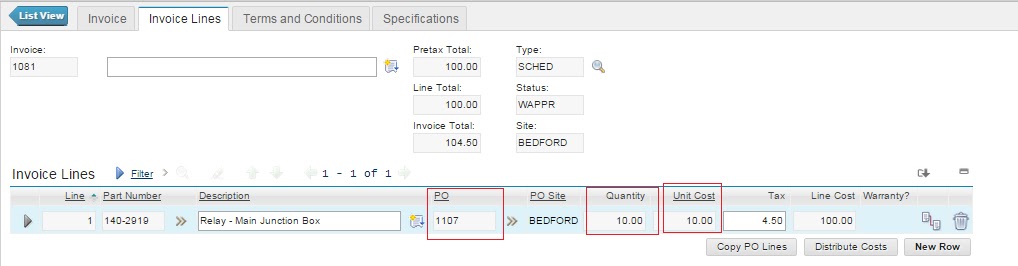
                                            Check the values in Total Cost and Uninvoiced Total fields. Also, check the Invoice Line details as below: Qty=10, Unit Cost=10% of OrderQty=10, Invoice Line Cost=100
  4. Receiving 6 items out of 10 ordered for Partial Receipt as below
                                                           
  5. One invoice is created for the above partial receipt as below: 
    Uninvoiced Total = 376.20                                           Check the Invoice Line details as: Unit Cost=100, Invoice Qty = 90% of Received Qty =    (90x6)/100 = 5.4, Line Cost = 540
  6. Receiving 2 more items as below: 
  7. Invoice created for above receipt as below: 

                                         Check the Invoice Line details as: Unit Cost=100, Invoice Qty = 90% of Received Qty =    (90x2)/100 = 1.8, Line Cost = 180.
  8. Receiving remaining 2 items as below: 
  9. Invoice Created for above receipt as below: 
                                                  Note that Receipt is now Complete and Uninvoiced Total=0. 
                                                   Also, check Invoice Line details as:  Unit Cost=100, Invoice Qty = 90% of Received Qty =    (90x2)/100 = 1.8, Line Cost = 180.
I hope this blog will help people in understanding how this feature works. Please feel free to share your comments.

Tuesday, 29 September 2015

Inventory Cycle Counting in Maximo

As per the Wikipedia on Cycle Counting, it is an inventory auditing procedure, which falls under inventory management. Inventory Cycle Counting is the process of continually validating the accuracy of the inventory in your system by regularly counting a portion of your inventory on a scheduled basis, so that every item in your inventory is counted within a set time period appropriate for the item.

Cycle Counting is the process of counting inventory items throughout the year on a schedule so that all items are counted at least once a year. The cycle counting approach in Maximo is a technique that segregates or categorizes inventory based on an ABC analysis and sets up a time schedule for when items should be counted throughout the year so that when the time frame of one year passes, all items have been counted at least one time.

ABC Analysis – Selective Inventory Control Usage in Maximo

ABC Analysis, also known as Selective Inventory Control is used for categorizing inventory into three categories, A, B, and C. It is a technique that identifies the items that represent the greatest investment for your department in terms of monetary value and turnover rate. The three categories are defined as:
  1. A Items: very tight control, high cost, complex parts - requires most management attention
  2. B Items: less tightly control, medium cost, medium complexity
  3. C Items: simplest control possible, low cost - marginally important
The ABC approach states that, when reviewing inventory, a company can also rate items from A to C, basing its ratings on annual consumption value, with highest for ‘A’ items, medium for ‘B’ items and lowest consumption value for ‘C’ items. The ABC Type value for an item is determined by running an ABC Analysis report, which multiplies the current YTD issued quantity by the last cost of the item. The items are then sorted in descending order of the dollar value reached by this calculation. MAXIMO sets the type to A, B, or C based on a percentage that the system administrator sets in in the Inventory Defaults dialog box in the Organization's application. You can set the ABC type to N, for no category, to exclude this item from the ABC analysis.

Also, system has the provision to record the cycle count at each item level in Inventory application. In Maximo, it is located in Inventory Module > Inventory application > Inventory tab > ABC Analysis section. 

In Maximo, system employs the ABC analysis as a cycle count tool to assist with the Inventory physical count process. The administrative settings allow an organization to group its items into A, B, or C categories and determine at what interval an item needs to be physically counted and reconciled (if the physical count and bin balance do not match) to the Maximo system balance. The breakpoint percentiles are designed to support a standard Maximo Inventory report, the Inventory ABC Analysis report.

The ABC Analysis report assists users in determining the ABC value of an item by multiplying its historical issue volume by the unit cost. The below listed steps can be followed for classifying items:

Find out the unit cost and the usage of each material over a given period (say one year).
Maximo stores historical data for Issue and Return transactions each year (or for any user-defined period) in the inventory table. Year to Date (YTD) quantities refer to the number of items issued from a specific storeroom location for the current year. The 'zero year to date quantities' action is found in the Inventory application. It is manually initiated by the user either at the beginning or the end of a material management time period.

By adjusting the YTD quantities, Maximo will move all year to date quantities back one year and change the current year to date quantity to zero.
Year to Date Quantity (INVENTORY.ISSUEYTD) specifies the Total year-to-date quantity issued from this location for the current year. Last Year quantity (INVENTORY.ISSUE1YRAGO) specifies the Total year-to-date quantity issued from this location for the previous year.
Multiply the unit cost by the estimated annual usage (INVENTORY. ISSUEYTD) to obtain the net value. List out all the items and arrange them in the descending value (Annual Value). Accumulate value and add up number of items and calculate percentage on total inventory in value and in number.

For example, let us assume that we have below set of breakpoints for A, B, C type for the Organization:
The following table is an example of an ABC ranking and classification:

Cycle Counting Procedure

The process of running an Inventory Cycle Count, in Maximo, involves printing of the Inventory Cycle Count report, manually performing the inventory count, and reconciling the quantity information in the Maximo Inventory application.

Inventory managers can develop scheduled reports to manage cycle count assignments. Managers can use the ABC Analysis tool to prioritize inventory as presented in above section. Once the inventory cycle count frequency is established, inventory managers can distribute cycle count reports to their team to perform the actual counts. The reports can be configured to restrict the data that is presented to the person performing the count. The person performing the inventory count will rely on the provided cycle count report which defines what items to count by storeroom locations, bins, etc. Once the cycle count is complete, the results can be entered in the system. The related inventory item balance can be adjusted by reconciling the actual count with the recorded inventory count.

  1. Inventory Cycle Count Report is available out of the box through the Run Reports action in the Select Action menu of Inventory Application. Enter or select the Storeroom and Site in the Request Page dialog box.
  2. The person performing the cycle count will receive the report.
  3. The report can be printed and the quantities entered on the paper for later manual entry into the Inventory application.
  4. When the manual cycle count is complete, the results must be entered into the system in order to reconcile the system expected balances with the actual physical inventory balance. This process is performed using the Inventory Adjustments > Physical Counts action in the Select Action menu of the Inventory application. Security configurations can be set so that inventory adjustment function is accessible to authorized group(s) or person(s) only. From the Inventory application, the authorized user can filter the list based on the storeroom/site, and select Inventory Adjustments > Physical Counts to begin the bulk adjustment. A warning message appears to inform users that they are about to perform a bulk adjustment. 
     
                                                                                                                     In the Physical Count Adjustment dialog box, each record is displayed along with the Physical Count from the current system inventory. Count Date field contains the system date, user can change it accordingly. User can enter the actual count from the previous step in the New Count field. 


  5.        Clicking OK in the Physical Count Adjustment dialog box, will complete the adjustment process. 

Thursday, 3 September 2015

Confusion over data load/migration using Migration Manager and Maximo Integration Framework

Usually in layman terms, whenever we are talking about migration we refer to data migration. It may be related to data load/migration from a legacy system to Maximo, or it may be related to data load to Maximo tables. But Migration Manager application(s) in Maximo enables a structured set of steps to promote configurations from one product environment to another. Migration Manager helps to export the configuration changes made on the development environment in a package and helps to import the package into a test or production environment.

I had come across an interesting query that whether we are using migration manager or the integration framework we create an object structure, which allows to create the data model which will be used for import/export. And, we import/export data related to an object, and the configuration changes also get saved in Maximo objects. So, why don’t we use Integration Framework instead of Migration Manager to import/export the configuration changes using XML or flat files? To answer this we need to understand the purpose of these

The purpose of Maximo Integration Framework is used to manage the transactional integration to external applications and is used for export and import to and from external applications or existing applications. The MIF supports primarily the master and transactional data. The purpose of Migration Manager is used for package-based configuration export and import between similar production environments. Migration Manager supports import/export of metadata (configuration data).

To understand the usage of each framework, we need to understand which one we should select to execute the required tasks. For example, a developer has implemented a workflow for incident management using TPAE (Tivoli Process Automation Engine) Workflow Designer and related applications like, Roles, Actions, Communication Templates, etc. This workflow needs to be promoted to Test and Production environments. In this case we are going to use migration manager. We bundle all the related metadata (configuration changes to actions, roles, communication templates, workflow process, etc.) to a package definition using object structures and migration groups, create a package, and distribute the package in the development environment. This package is then imported and deployed in the test or production environment. This way the workflow for incident management is made available in the test or production environment.

Let us consider one more example. We have a set of requirements for which we have created two custom objects. We have created new domains and relationships to new or existing objects. Based on these configuration changes we have made some changes to the Preventive Maintenance application. We need to migrate the configuration changes to a UAT environment before deploying into the Production environment. Here also, we need to use the migration manager.

Let us consider another scenario where we need to integrate Tivoli Asset Management for IT with asset discovery tool TAD4D or we need to integrate the Tivoli Service Request Manager to an external ticket management application and also the historical tickets need to be loaded into Tivoli Product. Integration Framework (MEA) is the choice in this case. Existing data, such as tickets, can be loaded into Tivoli Service Request Manager using a number of methods, including flat files, interface tables, or XML. Further, we may need to add 500 asset records. We will use MEA for loading the data for 500 records into the Asset object.

Now there is a need to migrate foundation data, which is also known as the implementation data, from development to production to avoid having to re-enter huge amount of data, such as locations and classifications, units of measure, currency codes etc., in the production environment. Some people like to call it as Reference Data also. Typically, this type of data consists of discrete sets of data that do not have multiple or deep relationships with other data. The Migration Manager can be used to migrate such foundation data. However, with its queue based processing, message processing and resubmission capability, using MIF to load foundation/reference/implementation data is more efficient that using migration manager framework.


With this we can come to a conclusion that data load/migration from one Maximo environment to another or from external system to Maximo, we need to keep in mind what type of data we are migrating or promoting. When we refer to metadata, i.e. data about data, like configuration changes, we would be using migration manager. And when we refer to master or transactional data and reference/implementation data, we should selectively use the Integration Framework.

Thursday, 27 August 2015

2way / 3 way / 4 way matching in Maximo

I have come across queries related to invoice matching in many occasions. What type of matching does Maximo support? Is it a three way matching or four way matching? For some of us who are not familiar with accounting, these questions lead you to a black hole.

The three way match refers to a procedure followed to avoid paying incorrect and fraudulent invoices and is used when processing an invoice received from a vendor or supplier. An invoice that is received from a supplier will be approved and paid by an organization if the purchase order and receiving report prepared by the organization are in compliance. That is in the world of maximo, we need to concentrate on the Invoice(s), Purchase Order(s) and Receipt(s) for a three way match. And the match refers to comparison of quatities, unit prices, total cost, etc. presented in the invoice record with the information on the PO and PO Line Items in the Purchase Orders application and the quantities that are actually received in the Receiving application against each PO line item. So the comparison points are:

  1. Quantity billed Vs. quantity ordered
  2. Invoice cost Vs. PO cost
  3. Quantity billed Vs. quantity received

After the invoice has been validated by this three way match, it can be paid by taking into consideration tolerances if any. 

The four way matching refers to a process when an invoice is matched with the corresponding purchase order for quantity and amount, receiving and, inspection details. In Maximo Purchase Orders application, we can create a purchase order for a material and mark both the checkboxes Inspection Required?  and Receipt Requied? against it. 

Alternatively, in the Item Master application, you can keep the checkbox Inspect on Receipt? checked for an item. When you select that item for a line in the PO, the Inspection Required? checkbox is marked automatically for this PO Line item.

So when you go to the Receiving application to generate receipt of the material and select the ordered item(s), you can check that material with transaction type RECEIPT is in status WINSP (Waiting for inspection). 
Now you need to change the inspection status where you are presented to enter accepted and rejected quantity. 
After changing the inspection status, you can check one more row for the material with transaction type TRANSFER and status COMP. You can also see that the material has now come from the holding location to the storeroom location of the site.

In this case, we see a four way matching as invoices are matched with purchase order, receiving information and inspection information. The comparison points in this type of matching are:

  1. Quantity billed Vs. quantity ordered
  2. Invoice cost Vs. PO cost
  3. Quantity billed Vs. qunatity received
  4. Quantity billed Vs. quantity accepted
Now there is another question, if I create a puchase order with a line item for which the checkbox for Receipt Requied? is not checked. In that case maximo allows a two-way matching as invoices are matched with the purchase order only. The comparison points in this type of matching are:

  1. Quantity billed Vs. quantity ordered
  2. Invoce cost Vs. PO cost. 

So to answer the query about procurement and invoicing in Maximo, it supports two-way, three-way and four-way matching for invoices.

Tuesday, 25 August 2015

Checklist for Flat File Imports

We are familiar with flat file imports using Maximo Integration Framework and it seems any layman will work it out. But to err is human so we tend to forget (intentioanally or unintentionally) some very familiar and simple steps that would actually make us save time banging our heads when we face encounter errors.

So, here is a checklist to consider while we are creating object structure, enterprise service and external system for flat file import through MIF.

We all are aware that for flat file upload first step is to create an object strucure. We need to remember that we need to select INTEGRATION in consumed by field and we need to select the checkbox of Support Flat Structure? We move on to select the main object, other objects (if any) with selecting the parent object as the main object and selecting the required relationship. We save the object structure. We need to follow the below steps:
  1. Select Action > Exclude/Include Fields - this is required to select the fields from main object and all child objects which will be kept in the flat file. 

  2. Select Action > Add/Modify Alias - this step might be required if there are same attribute names in main object and child object(s). In this case, after saving the object structure the Alias Conflict? checkbox will be marked automatically. After renaming the duplicates, this checkbox will be cleared. 

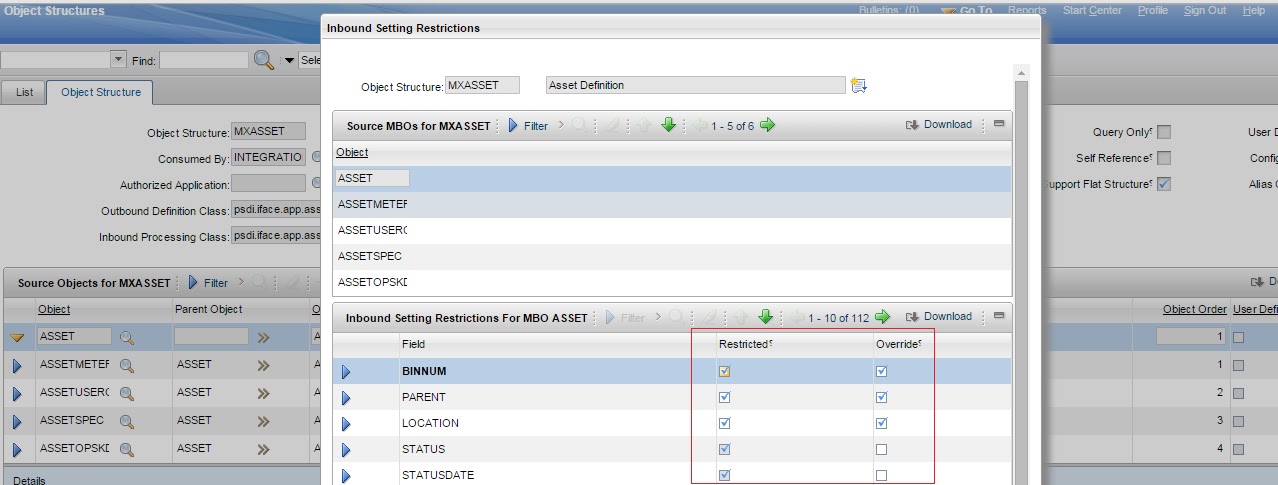
  3. Select Action > Inbound Setting Restrictions - this steps is required if we want MIF to use the autokey functionality for some field. If it is not restricted in the object structure MIF expects data in the flat file. For example, we are loading asset data and required attribute assetnum has a autokey defined in its object. We keep the values for this column blank in the flat file but while importing the flat file, we get an error  "BMXAA4195E - Requred field XXX is blank". To avoid getting this error this step is mandatory and we tend to forget this step frequently.


We move on to create the Enterprise Service for our inbound transaction. We associate out object structure, select adapter as MAXIMO and operation as SYNC.

Next step is to create an external system for which end point should be MXFLATFILE. Outbound sequenetial queue, inbound sequential queue, and inbound continuous queue should be entered and Enabled? checkbox should be selected. Then we go to the Enterprise Services tab and associate the enterprise service createt and uncheck the checkbox of Use Continuous Queue?

Next step is to get ready with our flat file. Flat file should be with extension .dat and first row in the file should consist of External System Name, enterprise service name, action (Add/AddChange/Change/Delete/Replace/null), and language. Second row consists of all the column names specified in Exclude/Include Fields window of the Object Structure. Third row onwards consist of the data to be imported. Ensure to remove extra commas from the flat file.

Now from the Enterprise Services tab in the External Systems application, select the enterprise service for which you want to import the flat file and click on Data Import button.Select the radi box for Flat File and select the checkbox Import Preview? Choose the flat file and click OK.
If you get a message "BMXAA5621I - The data import preview mode is successful", then again click on Data Import button. Select Flat File radio button and this time do not select the Import Preview? checkbox. Choose the same flat file and click OK. Your data should be imported successfully.

PS: For better error tracking and management, you should also enable message tracking in the Enterprise Service. From the select action menu, choose option Message Tracking and in the Message Tracking Setting dialog window, check the Enable Message Tracking? checkbox.